
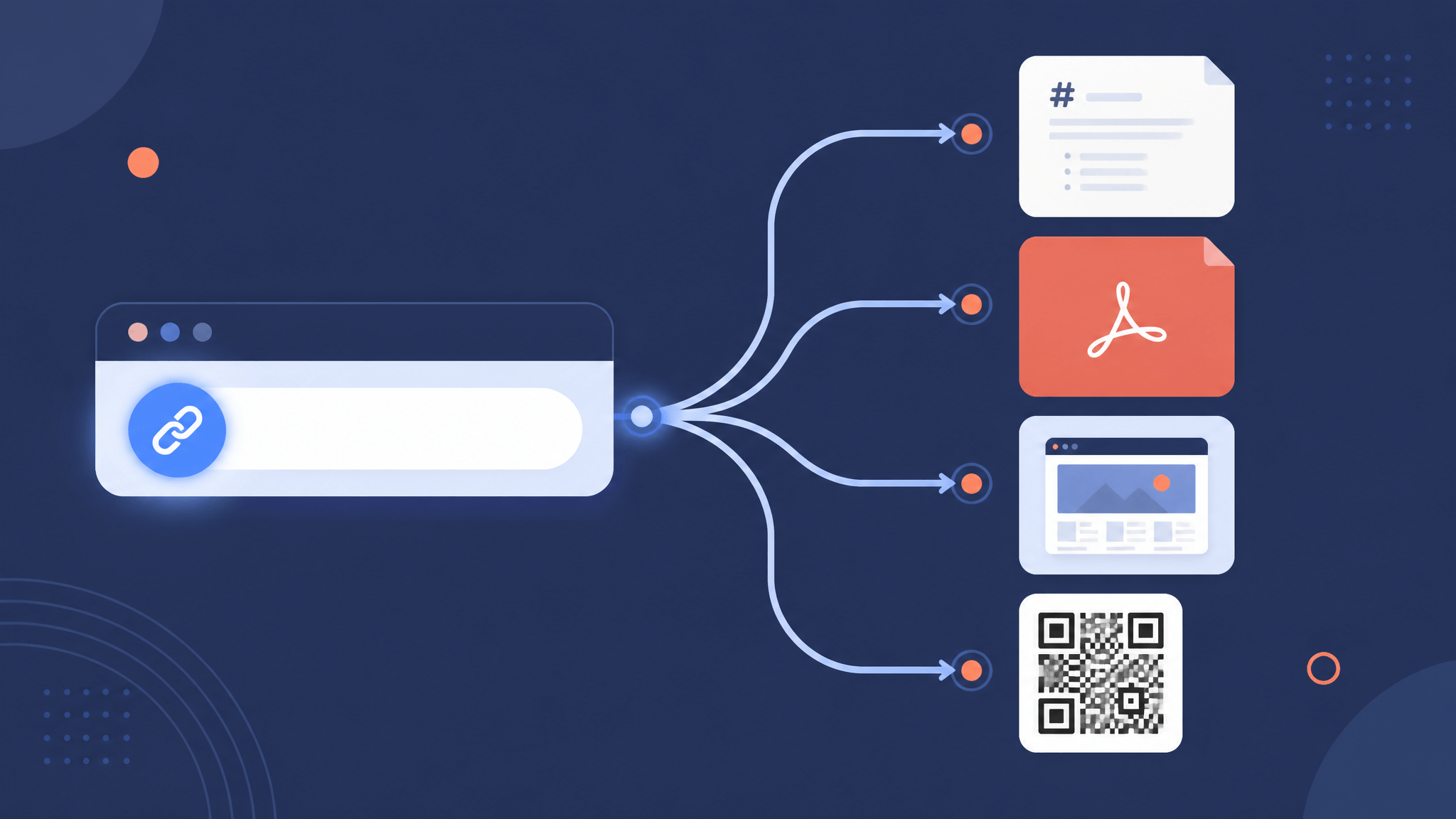
URL Converter: Convert Any Link Into the Format You Need
A practical URL converter guide: turn any link into Markdown, text, PDF, an image, a QR code, JSON, metadata, or a summary — which tool to use and when.
You have a link. What you need is the page behind it in a specific shape: Markdown for your notes, plain text for an AI prompt, a PDF for your records, a QR code for a poster. A URL converter is the tool that does that translation — you paste a web address, and it hands the page back as the format your next step requires.
Picking the right one is not about which tool is “best”. It is about where the output goes next. This guide maps each common conversion to the right tool on URL to Any, shows what each one actually does, and links a deeper tutorial for the formats worth mastering.
What “URL converter” actually means
Before choosing a tool, it helps to know that “URL converter” gets used for three different jobs:
- Turning a link’s content into another format. You have a web page URL and want the page as Markdown, text, PDF, an image, structured data, or a summary. This is the sense this article uses, and the direction URL to Any is built for.
- Turning a file into a hosted link. Upload a PDF or image, get a shareable URL back. That is the reverse direction — file hosting, not conversion — and tools that do it are a different category.
- Encoding or decoding the URL string itself. Turning spaces and special characters into
%20, decoding them back, or working with Base64 and JWT strings. That is a text-transformation job, not a page-conversion job. URL to Any covers it too, with a dedicated URL Encode and URL Decode tool.
If your job is in the first group — “I have a link, I want the page in another format” — the rest of this guide is your map.
The quick decision table
URL to Any currently ships sixteen of these converters, all reachable from one screen:
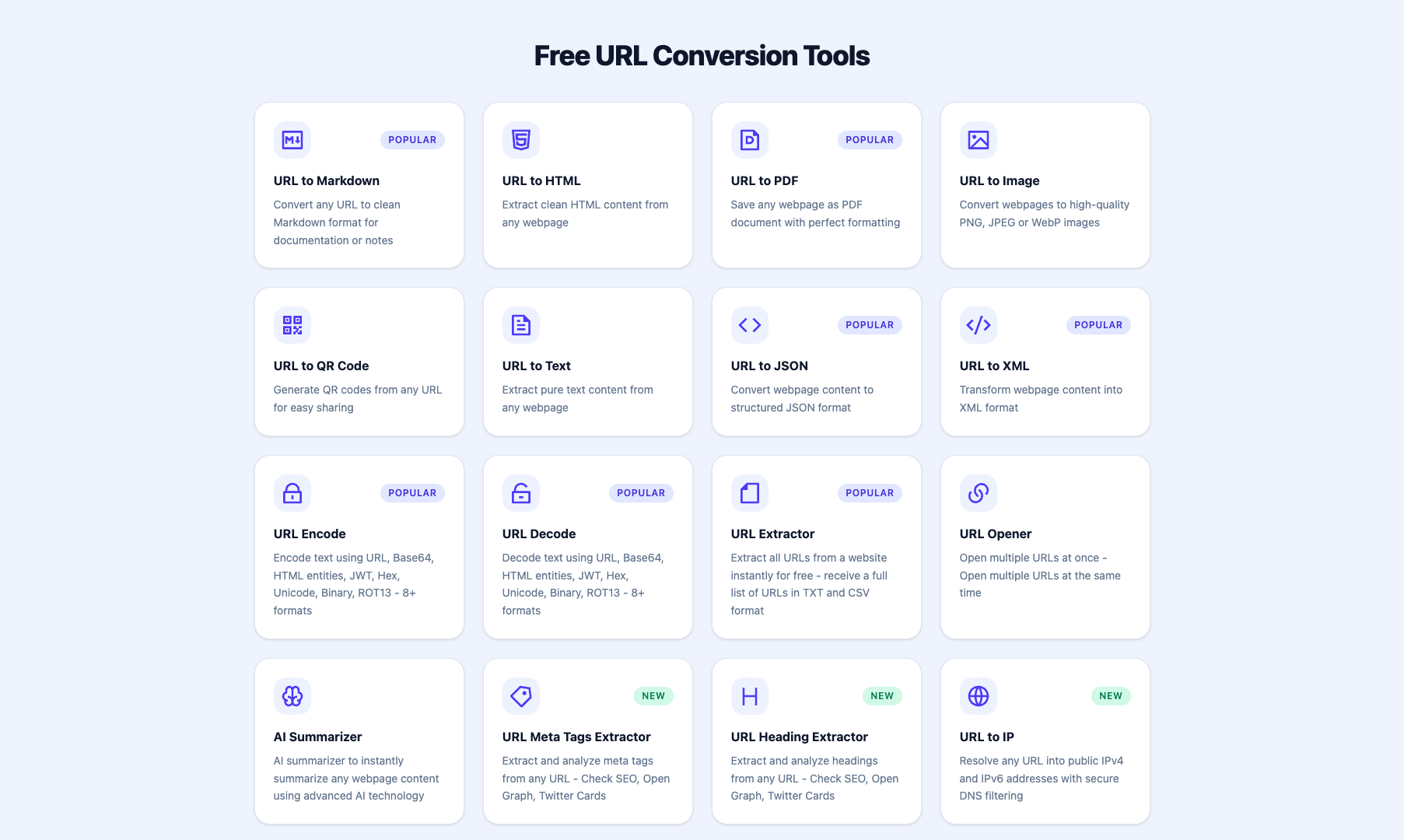
| You want… | Use | Best for | Deep dive |
|---|---|---|---|
| Editable, structured page content | URL to Markdown | Notes, docs, AI prompts | URL to Markdown guide |
| Just the words, no markup | URL to Text | Cleaning text for LLMs, quotes, analysis | URL to Text workflows |
| A saved, shareable document | URL to PDF | Archiving, printing, email attachments | Webpage to PDF guide |
| A picture of the page | URL to Image | Visual records, previews, bug reports | — |
| A scannable code for the link | URL to QR Code | Print, posters, slides, packaging | — |
| Structured data for code | URL to JSON or URL to XML | Pipelines, scripts, integrations | JSON extraction guide |
| Its SEO and social tags | URL Meta Tags Extractor | SEO audits, link previews | Meta tags guide |
| The gist without reading it all | AI Summarizer | Triage, research shortlists | AI summary workflow |
Every tool runs in the browser: paste the URL, get the result, copy or download it. No account, no installation.
Markdown: when the content needs to keep its structure
Markdown is the format to pick when the text is going somewhere editable — a notes app like Obsidian, a documentation site, or a prompt for an AI coding agent. The URL to Markdown converter strips ads, navigation, and scripts, and keeps the things that matter: headings, links, lists, tables, code blocks, and images.
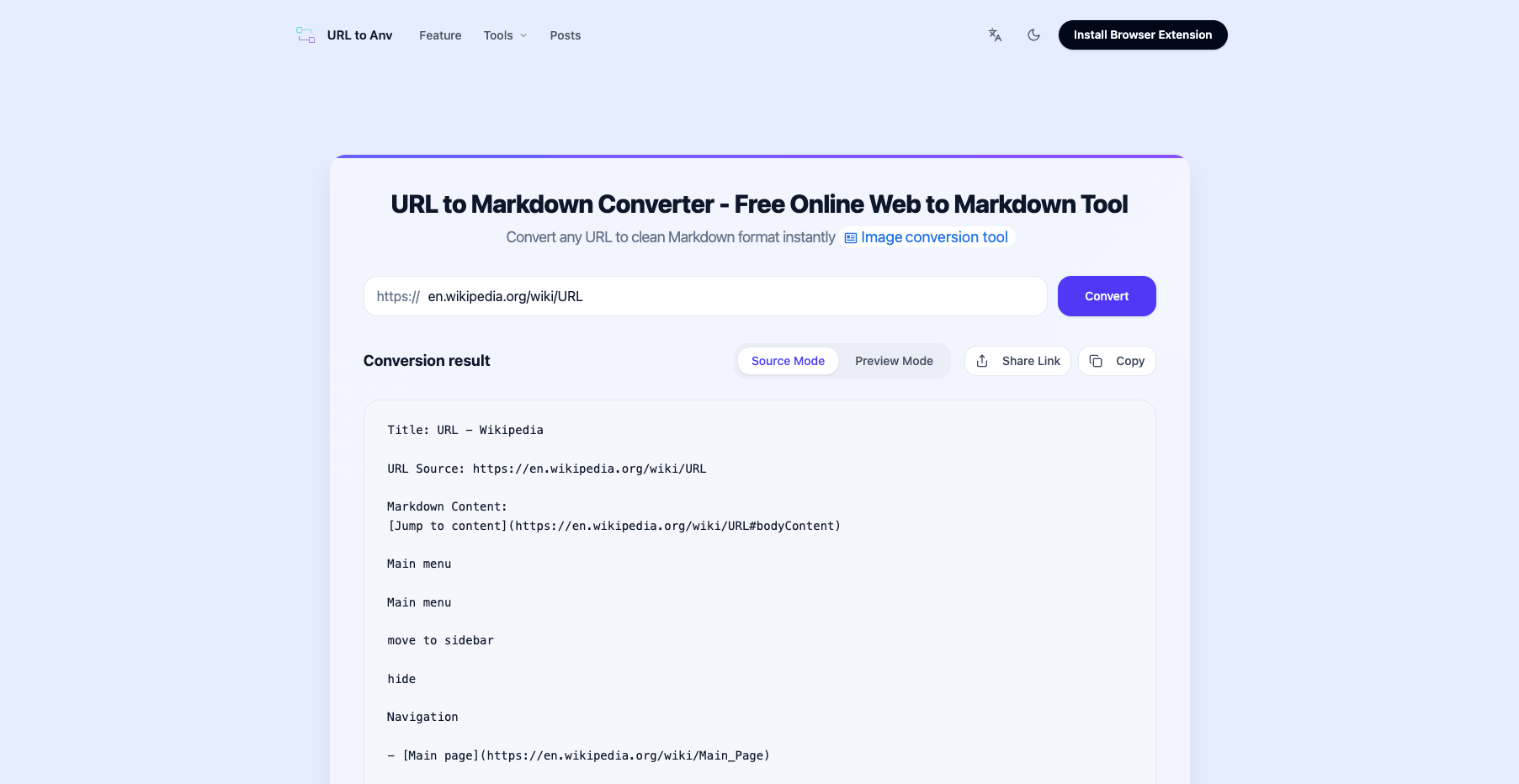
Pick Markdown over plain text whenever headings and links carry meaning for what you will do next — an AI agent navigates a converted page by its heading structure, and your own notes stay navigable the same way. The complete URL to Markdown guide covers options and edge cases.
Plain text: when markup is noise
The URL to Text tool extracts pure text content with no formatting at all. That is what you want when the destination ignores Markdown anyway: pasting into a form field, feeding a character-count-sensitive prompt, or pulling clean quotes into a document you will style yourself. The tradeoff is structural — a converted page arrives as one plain flow, with no way to tell a heading from an emphasized line. The URL to Text workflow guide shows where that trade pays off, especially in LLM pipelines.
PDF: when the page must look the same later
A PDF freezes the page: layout, typography, and images stay fixed for archiving, printing, or attaching to an email. The URL to PDF tool captures the live page and produces a real, downloadable PDF document. Pick it when the exact appearance is the point — receipts, references, articles you need to cite verbatim — and pick Markdown when you plan to edit. The webpage-to-PDF guide walks through the details.

Image: when you need to show the page, not describe it
The URL to Image tool converts a webpage into a high-quality screenshot. A full-page capture is the honest artifact for bug reports, design comparisons, link previews, and any situation where “here is what it actually looked like” beats a description. Unlike the text-based converters, an image cannot be searched or edited — which is exactly why it is credible.
QR code: when the link has to survive offline
The URL to QR Code tool is the odd one out: it ignores the page content entirely and encodes the address itself into a scannable image. Use it when a link needs to jump from the physical world back into a browser — slides, business cards, posters, packaging. One caution worth keeping in mind: a QR code is only as trustworthy as the link it encodes, so point yours at a page you control.
JSON and XML: when a program is the reader
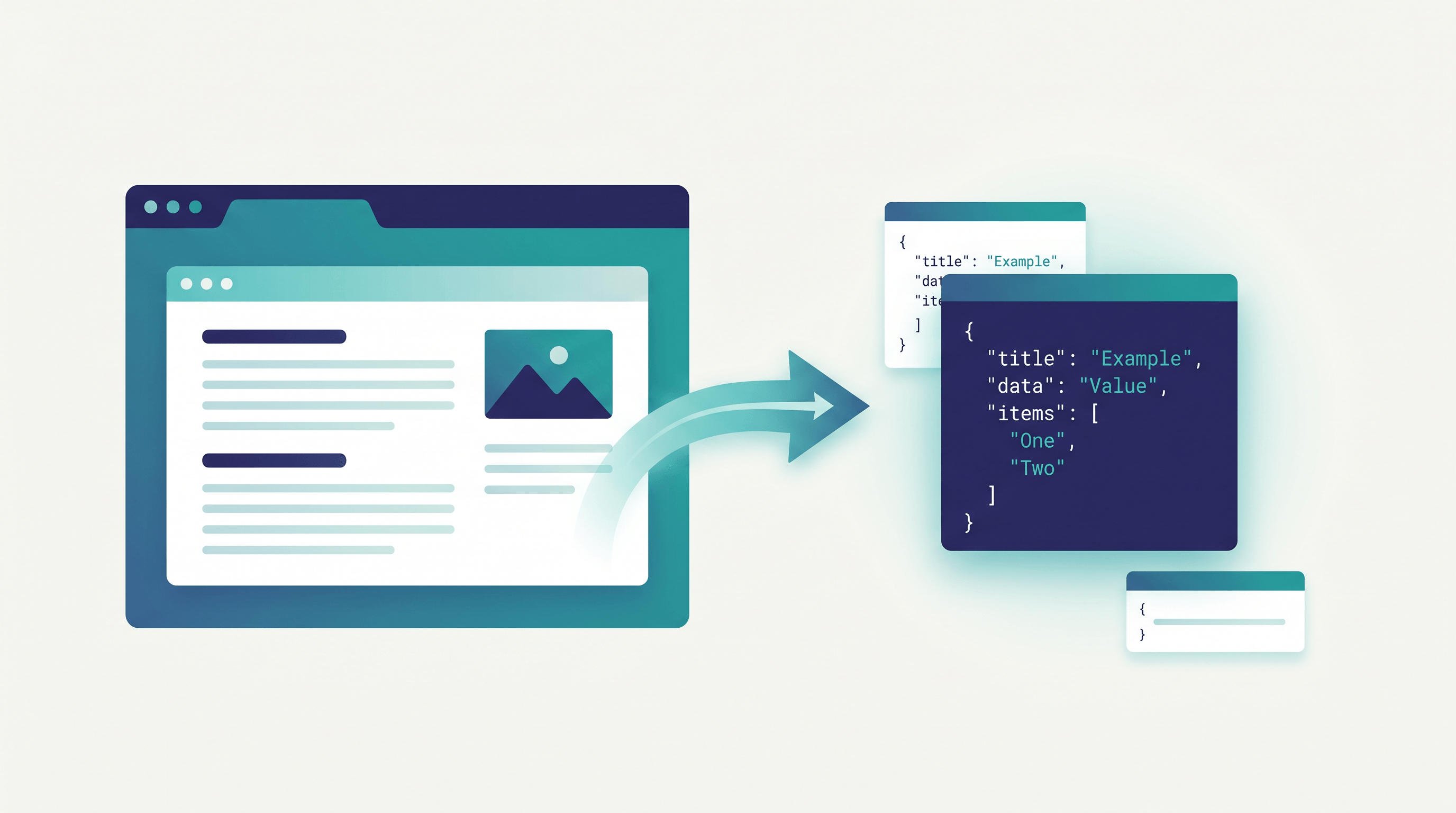
The URL to JSON and URL to XML converters return the page’s content in a structured shape your code can consume directly — no scraping logic, no brittle CSS selectors to maintain. This is the format to choose for automation: content pipelines, monitoring scripts, or feeding extracted page data into another API. The JSON extraction guide shows a full no-scraper setup.
Metadata and headings: when you need to audit the page, not read it
Sometimes the job is not the content but the page’s own machinery. The URL Meta Tags Extractor pulls a page’s SEO tags, Open Graph data, and Twitter Card metadata — the fields that decide how a link looks when shared. The related URL Heading Extractor returns just the heading outline, which is the fastest way to judge how a page is organized. The meta tags guide covers an audit workflow end to end.
AI summary: when you need the gist first
The AI Summarizer reads a public webpage and returns a short summary — the tool to reach for when you are triaging ten links and only three deserve a real read. It pairs naturally with the converters above: summarize first to filter, then convert the keepers to Markdown or PDF. The read-later workflow guide builds exactly that pipeline.
How to choose in ten seconds
Three questions settle almost every case:
- Where does the output go next? Notes or an AI prompt → Markdown. A form field or a prompt with tight length limits → text. Email, print, archives → PDF. A script → JSON. A wall or a slide → QR code.
- Do you need to edit it or cite it? Editable output argues for Markdown or text; fixed output argues for PDF or image.
- Do you need the content or just the address? Content → the converters above. Just the address → QR code or the encode/decode tools.
One honest limitation applies to every browser-based converter: pages behind logins, paywalls, or aggressive bot protection can refuse to convert, and a page that renders everything with client-side JavaScript may convert differently from what you see in your browser. The tools report these failures rather than pretending to succeed — which is the behavior you want from a converter.
If you are unsure which tool fits, all sixteen sit in one grid on the URL to Any homepage — the decision table above is essentially a guided tour of that screen.
The short version
A URL converter is a format decision, not a product decision: decide where the converted page needs to land, and the right tool is usually obvious. Markdown for anything editable, text for anything format-averse, PDF for anything that must look the same later, images and QR codes for anything visual, JSON for anything programmatic, metadata for anything you are auditing, and an AI summary for anything you have not decided to read yet.
Related Articles

How to Convert a URL to Markdown for AI Agents
Skip pasting raw HTML. This 60-second URL to Markdown workflow gives AI agents clean page content — plus when live browsing is the better choice.
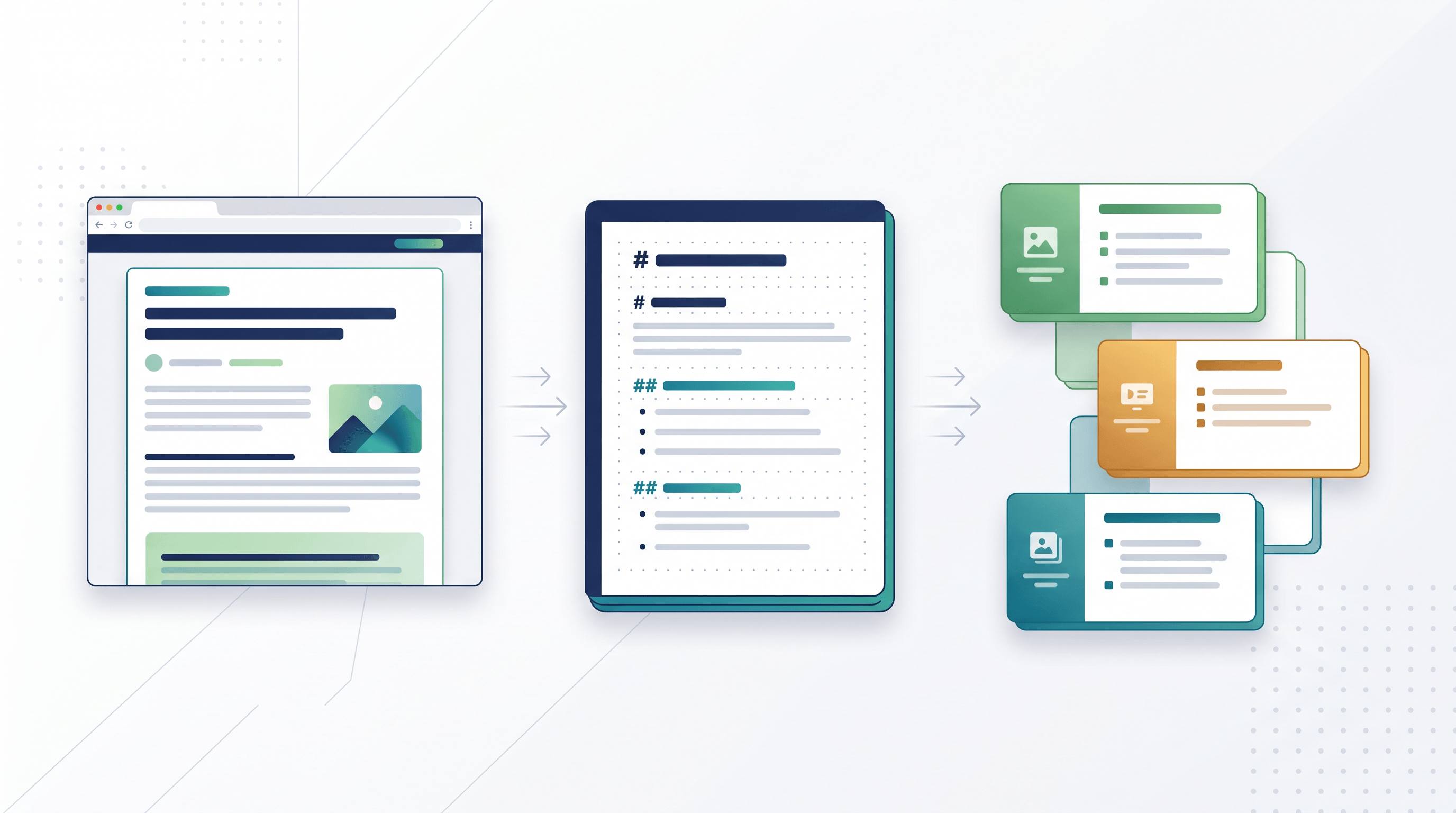
Webpage to PPT Outline: Turn Articles into Slides
Learn a 6-step webpage to PPT outline workflow: convert articles to Markdown/Text, structure slides, and feed clean input into AI PPT tools.
How to Extract Web Data to JSON Without Building a Scraper
Extract web data to JSON without building a scraper. A fast URL-to-JSON workflow turning any web page into structured data in seconds.