

URL to IP: How to Find the IP Address Behind Any Link
Run a URL to IP lookup in seconds. See what A and AAAA records tell you about any link, and where results stop: CDN edges, CNAME chains, caching, wildcards.
Every link on the web points at at least one machine. A URL to IP lookup takes the hostname inside a link — the example.com part of https://example.com/pricing — and asks the Domain Name System which public IPv4 and IPv6 addresses it currently maps to. In one query you can confirm a DNS migration actually landed, attribute traffic in your server logs, or check which network a third-party script really connects to. This guide shows how to run a lookup in seconds, how to read every field in the result, and — just as important — where the result stops telling you the truth: CDN edges, CNAME chains, cached answers, and wildcard records.
Key takeaways
- A URL to IP lookup resolves a URL’s hostname to its public A records (IPv4) and AAAA records (IPv6).
- Several IP addresses in one result is normal — large sites publish multiple A records on purpose.
- If a domain sits behind a CDN or reverse proxy, you see the edge network’s addresses, not the origin server.
- Empty groups mean something: no AAAA records usually means the site isn’t IPv6-enabled yet, not that the lookup failed.
- Answers are cached per record TTL, so a result is a snapshot of “right now”, not a permanent fact.
What a URL to IP lookup actually does
A URL has three useful parts: the protocol (https://), the hostname (example.com), and the path (/pricing). Only the hostname gets resolved. The lookup strips the rest and asks DNS a single question: what public IP addresses does this name answer for?
DNS is the system that translates human-readable domain names into machine-readable IP addresses — the internet’s phonebook, as Cloudflare’s Learning Center puts it. Two record types carry the answer:
| Record | Maps a hostname to | Example output |
|---|---|---|
| A | an IPv4 address | 203.0.113.10 |
| AAAA | an IPv6 address | 2001:db8:4006:80b::200e |
Everything else in the URL — protocol, port, path, query string — is handled by the web server after your browser already knows the IP. That’s why two URLs that share a hostname always resolve to the same set of addresses.
What the result tells you
A good lookup result reads like a small report. The URL to IP Lookup tool returns these fields:
| Field | Meaning |
|---|---|
| Domain | The hostname that was resolved |
| A Records (IPv4) | Every public IPv4 address currently published |
| AAAA Records (IPv6) | Every public IPv6 address, if any |
| Total IPs | Combined count of A + AAAA results |
| Resolved At | The exact moment of the query |
Three details are worth reading carefully:
Multiple addresses are normal. The DNS specification says a host with multiple internet addresses will have multiple A records (RFC 1035, §3.4.1). Big sites deliberately publish several addresses — often spread across points of presence — so traffic survives when one path has problems. Seeing four or six IPs is a sign of a well-provisioned site, not an anomaly.
All results are public addresses. Lookups never return private-range addresses like 10.x.x.x or 192.168.x.x (reserved for internal networks by RFC 1918). If an A record points into a private range, it’s a misconfiguration on the domain’s side — the public DNS system answers with it, but it can’t be reached from the open internet.
The timestamp matters. Because DNS answers are cached and change over time, Resolved At turns the result into a citable snapshot — pair it with a CSV export and you have a before/after record.
How to run a URL to IP lookup in seconds
You don’t need a terminal or a DNS background for this — the whole check is one web page:
- Copy the URL whose machine you want to identify, straight from your address bar or from the link you’re investigating.
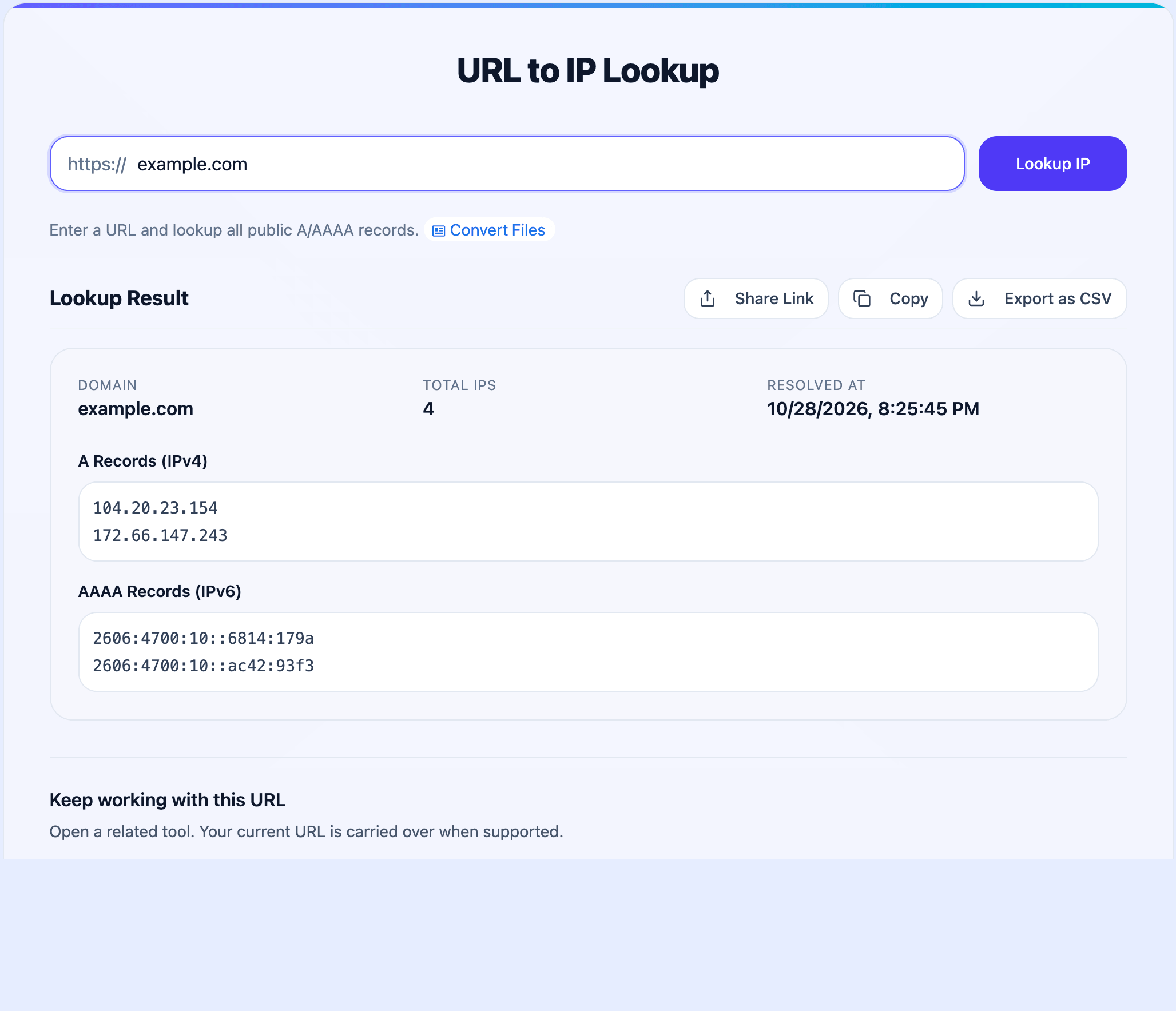
- Paste it into the URL to IP Lookup tool and click Lookup IP. The tool resolves the hostname through Cloudflare’s public DNS resolver over encrypted DNS-over-HTTPS, querying the A and AAAA records in parallel, and returns both groups with a total count and timestamp.
- Read the two groups — IPv4 and IPv6 — and note whether either is empty (more on that below).
- Export the result as CSV if you’re tracking a migration or incident; repeat the lookup later and compare snapshots. Run it for both the apex domain (
example.com) and thewww.subdomain — DNS records often differ between the two.
One boundary worth stating: run lookups against your own domains or ones you’re authorized to assess. A DNS query is a normal, public part of how the web works, but the useful workflow here — verifying changes, attributing traffic — is about sites you operate.
No AAAA records? Two very different reasons
An empty IPv6 group is one of the most misread results. There are two distinct situations:
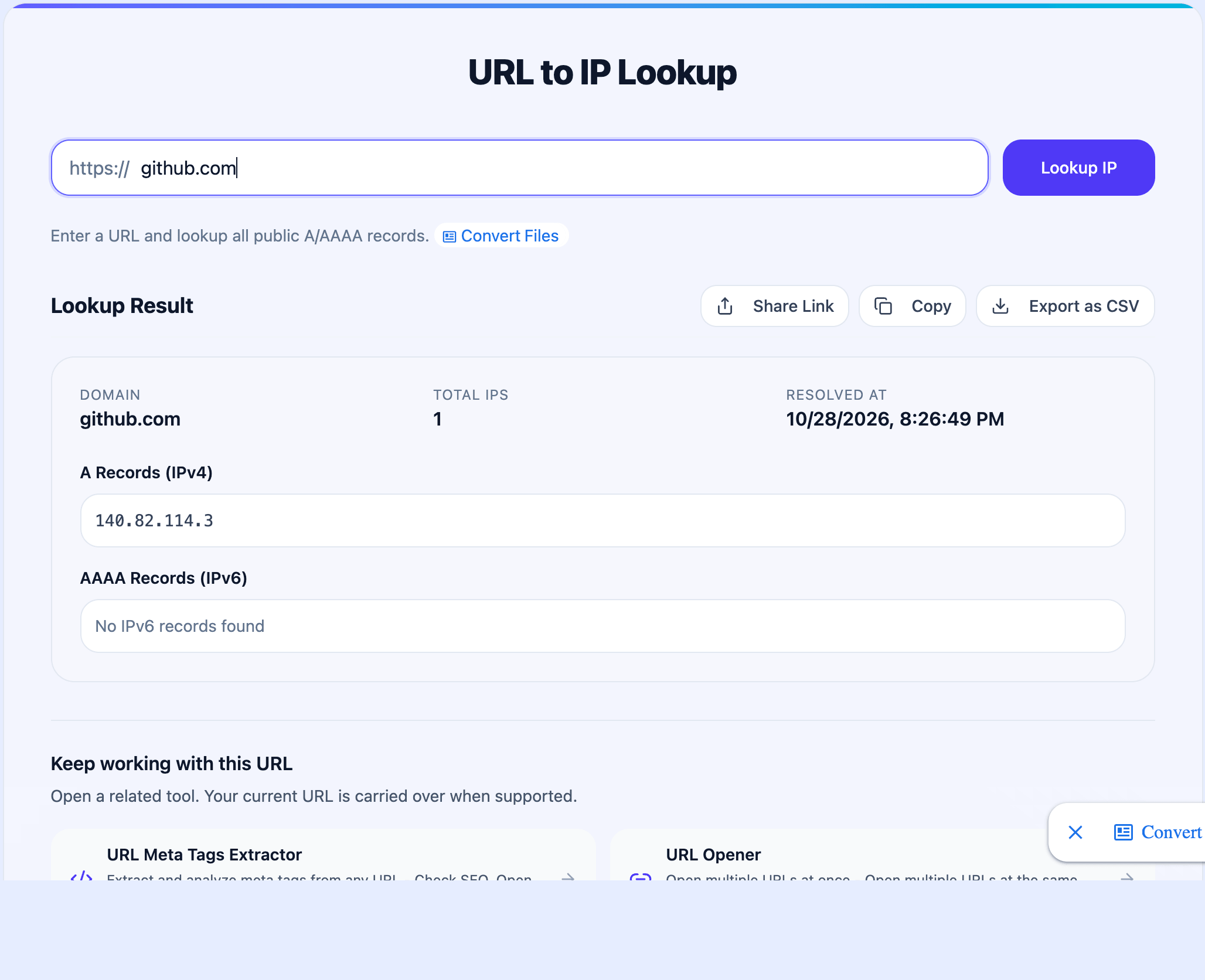
The site isn’t IPv6-enabled yet. In a run we observed while writing this guide, github.com returned one IPv4 address and zero AAAA records — GitHub simply doesn’t publish IPv6 addresses for that hostname. The lookup worked correctly; the domain just hasn’t deployed IPv6. That’s still common enough that it’s worth checking, and it’s exactly what a dual-stack readiness check looks for before you commit to an IPv6-dependent setup.
The site is IPv6-only. The reverse — AAAA records with no A records — is rare but legitimate for some modern or internal-adjacent infrastructure. An IPv4-only client can’t reach such a host directly and relies on translation services.
What a URL to IP result does not tell you
This is where most misinterpretations happen.
You’re seeing the edge, not the origin. If a domain is served through a CDN or reverse proxy — a server layer that sits in front of the real web server for speed and protection — the published records point to that proxy layer, not the machine running the site. In our observed run, example.com resolved to two IPv4 and two IPv6 addresses on an anycast edge network; none of them is “the server where example.com lives”. That’s by design: the reverse proxy absorbs the traffic and shields the origin. So a lookup can tell you which delivery network answers for a link — it cannot reveal the origin server behind a protected site, and treating edge IPs as “the host” leads to wrong conclusions about hosting, geolocation, and ownership. (For the same reason, trying to “get past” a CDN’s addresses to reach an origin isn’t something this guide covers — probing infrastructure you don’t own is out of bounds.)
An IP address is not an owner. The result tells you the address, not who operates it. Mapping an address to a network operator is a separate (and less precise) exercise involving WHOIS and routing data, and shared platforms put thousands of sites on the same addresses.
It’s a point-in-time answer. Resolvers cache records for the duration of each record’s TTL (time to live). If the site’s operators changed a record five minutes ago, you may still see the old answer — and two people looking up the same domain through different resolvers can briefly see different results.
Common failures and how to read them
| Symptom | What’s actually going on | What to do |
|---|---|---|
| A different domain shows up in a full DNS trace, but not in the A/AAAA result | The hostname is a CNAME — an alias pointing to another name (RFC 1035 calls it “the canonical name for an alias”). A URL to IP lookup returns the final A/AAAA addresses and skips the aliasing steps. | Use a full DNS trace tool (e.g. dig or Google’s Admin Toolbox Dig) when you need the alias chain itself — see the CNAME trace for www.wikipedia.org below. |
| “No public IP addresses found” | The hostname has no A or AAAA records: an internal name, a typo, a subdomain that doesn’t exist, or a domain registered but not yet set up. | Check the spelling, then query the apex domain. |
| Result doesn’t match the DNS change you just made | Cached answer (TTL hasn’t expired) or your change hasn’t propagated. | Wait out the TTL, then re-run and export a fresh snapshot. |
| Literally any subdomain returns an IP | A wildcard record (*.example.com) synthesizes answers for arbitrary names under the domain (RFC 4592). |
Don’t conclude a specific subdomain has its own dedicated record or server. |
| One of the two groups is empty | IPv4-only or IPv6-only deployment — usually the former. | Read it as a deployment fact, not an error (see the section above). |

CNAME lookup via MXToolbox SuperTool (mxtoolbox.com), accessed October 28, 2026.
What people actually use URL to IP lookups for
- DNS change verification. You updated an A record during a migration or failover; the lookup confirms what the public can currently see, and the timestamp + CSV export give you an audit trail.
- Log attribution. Before reading server access logs, resolve your own hostnames to know which address ranges are legitimately “you” — and to explain why a load balancer shows up instead of a single box.
- Third-party resource checks. A marketing page loads scripts from
cdn.some-vendor.com; resolving that hostname tells you which delivery network answers for it, which is useful context when a vendor change breaks something. - Incident snapshots. During an outage or DNS incident, timestamped CSV exports document what the resolution looked like at each step — evidence that survives the fix.
The bottom line
A URL to IP lookup answers one precise question: which public machines answer for this link right now? Read the A and AAAA groups as deployment facts, treat multiple addresses and CDN edges as normal, remember every answer is a timestamped snapshot — and you’ll get real diagnostic value from a ten-second check instead of wrong conclusions.
Run your next check with the free URL to IP Lookup tool — no sign-up, A and AAAA records in one pass, CSV export for before/after comparisons. And if your task turns out to be about the link’s content rather than its machine — saving a page as Markdown, text, or a PDF — the URL converter overview maps the rest of the toolkit.
Related Articles

URL Converter: Convert Any Link Into the Format You Need
A practical URL converter guide: turn any link into Markdown, text, PDF, an image, a QR code, JSON, metadata, or a summary — which tool to use and when.

How to Convert a URL to Markdown for AI Agents
Skip pasting raw HTML. This 60-second URL to Markdown workflow gives AI agents clean page content — plus when live browsing is the better choice.
Webpage to PPT Outline: Turn Articles into Slides
Learn a 6-step webpage to PPT outline workflow: convert articles to Markdown/Text, structure slides, and feed clean input into AI PPT tools.